
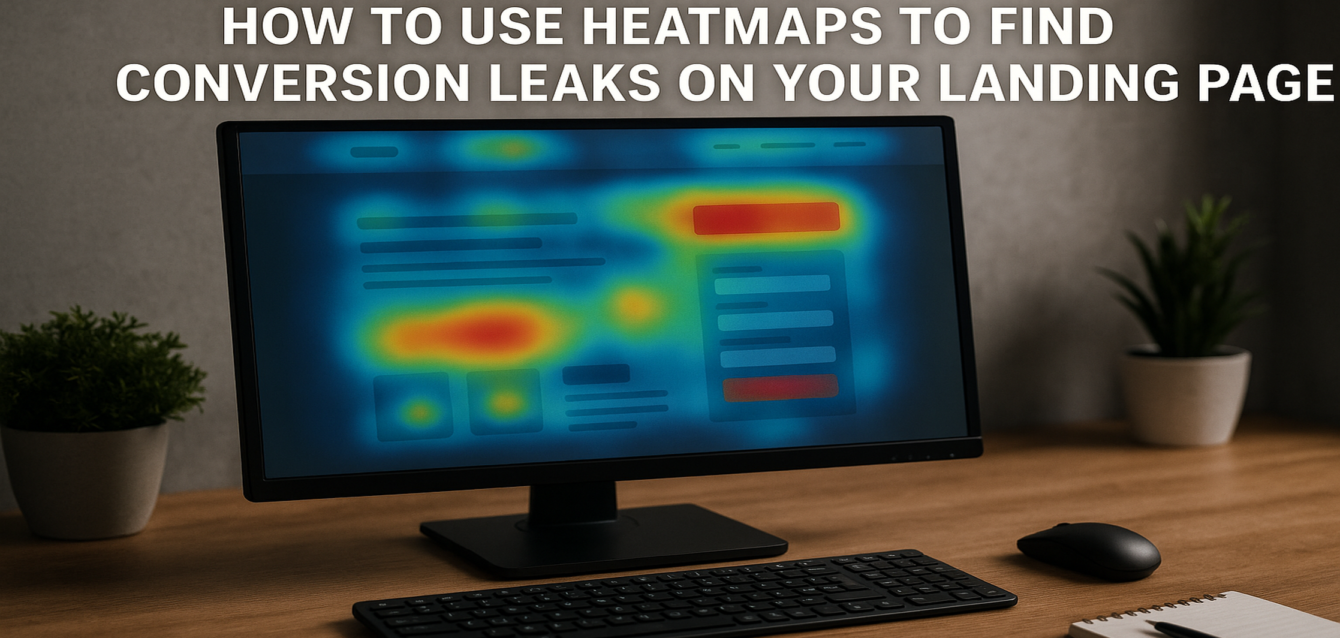
How to Use Heatmaps to Find Conversion Leaks on Your Landing Page
A heatmap for landing page CRO shows where visitors click, scroll, hesitate, ignore content, or drop off before converting. To use heatmaps well, start with a free CRO audit, install a tool like Microsoft Clarity or Hotjar, review click maps, scroll maps, and session recordings, then turn repeated user behavior patterns into landing page optimization fixes.
Most landing pages do not fail because visitors hate the design. They fail because users miss the call to action, stop scrolling before the offer is clear, click non-clickable elements, abandon forms, or lose trust before taking the next step.
In our audits of 200+ landing pages, we have found that heatmap data is most useful after a page has already been reviewed for obvious CRO problems. Before installing another script, run a free CRO audit to check headline clarity, above the fold layout, CTA visibility, page speed, mobile optimization, trust signals, and form friction.
This guide uses The Dreamer Designs Heatmap-to-CRO Framework to show how to read heatmaps, interpret session recordings, and turn user behavior into conversion rate improvements.
What Is a Heatmap for Landing Page CRO?
A heatmap for landing page CRO is a visual report that shows how visitors interact with your page, including where they click, how far they scroll, what they ignore, and where they may get stuck.
Heatmaps help bridge the gap between analytics and real behavior. Google Analytics 4 can tell you that a landing page has a high bounce rate or low conversion rate. A heatmap can help you see whether users missed the CTA, stopped before the form, clicked the hero image, ignored testimonials, or got distracted by secondary links.
Heatmaps are different from A/B testing. A/B testing compares two versions to see which performs better. Heatmap analysis helps you decide what to test in the first place. It is also different from a full website audit because it focuses on user behavior on a specific page.
Microsoft Clarity describes itself as a free user behavior analytics tool with session replays and heatmaps, while Hotjar describes heatmap data as aggregated user behavior that shows how visitors interact with a site and where they may get stuck.
A landing page heatmap can help answer questions like:
Do visitors see the CTA above the fold?
Are users clicking the right elements?
Are they scrolling far enough to see proof?
Are mobile users dropping off earlier than desktop users?
Are users clicking non-clickable images or icons?
Are form fields causing hesitation?
Are trust signals placed too low?
Is the conversion funnel breaking before the form?
According to Google, GA4 recommended events can be configured to measure important user behaviors, including ecommerce and other business actions. Heatmaps are more useful when paired with event tracking because you can compare visual behavior with actual conversions.
Why Heatmaps Matter for Landing Page Optimization
Heatmaps matter because they show what visitors actually do, not what your team thinks they do.
A landing page can look clear in a design review and still confuse real visitors. Heatmaps reveal that gap. They show whether the page hierarchy works, whether the CTA is visible, whether users trust the offer, and whether the form creates friction.
In our analysis of 200+ landing pages, we found that heatmap findings often confirm problems we first saw in manual audits: unclear above the fold messaging, low CTA visibility, weak social proof placement, poor mobile UX, and form friction.
A heatmap is especially useful when:
Traffic is high but conversions are low
Paid ads get clicks but the page does not convert
Users scroll but do not submit the form
Shopify visitors add to cart but do not buy
WordPress forms receive views but few completions
Unbounce variants show mixed test results
A page redesign looks good but underperforms
Your team disagrees about what to fix first
Pull-quote stat: In our audits of 200+ landing pages, missed CTA visibility and low-scroll proof placement were two of the most common conversion leaks uncovered by heatmap review.
Use heatmaps to find patterns, not one-off odd behavior. One user rage-clicking an image is interesting. Twenty users doing it is a conversion clue.
Before reviewing behavior data, use our CRO platform to identify the most likely page-level issues, then confirm them with heatmap and session recording evidence.
The Dreamer Designs Heatmap-to-CRO Framework
The Dreamer Designs Heatmap-to-CRO Framework is a step-by-step process for turning click maps, scroll maps, movement maps, and session recordings into landing page fixes.
Use this process before you run A/B testing or multivariate testing. Heatmap data helps you choose better test ideas, reduce guessing, and prioritize the conversion leaks that affect the most visitors.
1. Start With a CRO Audit Before Installing a Heatmap
A CRO audit gives you a baseline before heatmap data shows user behavior.
Do not install a heatmap tool and immediately start guessing. First, review the page manually. Check whether the headline is clear, the CTA is visible, the above the fold section explains the offer, the page speed is acceptable, the form is easy to complete, and trust signals appear before decision points.
If the page has obvious issues, fix or document them before interpreting heatmap patterns. Otherwise, you may waste time analyzing behavior caused by problems you already know exist.
Quick-win fix: write down three questions before checking the heatmap. For example: “Do users see the CTA?”, “Do they scroll to testimonials?”, and “Where do they abandon the form?”
This turns heatmap analysis into a focused CRO process. Start with a free landing page audit so you know which conversion leaks to look for first.
2. Install Microsoft Clarity or Hotjar Correctly
A heatmap tool only works if it is installed on the right page and collecting the right traffic.
Microsoft Clarity is a strong free starting point because it offers heatmaps and session replays and says it is free forever with no traffic limits. Hotjar offers heatmaps, recordings, surveys, and feedback tools, and its help content explains that heatmaps, recordings, and surveys can help diagnose why users behave a certain way on a page.
Install the script on the landing page you want to study. Then confirm that traffic is recording before making decisions. If you use Shopify, check whether your theme, landing page app, or checkout limitations affect where scripts can run. If you use WordPress, confirm the script is not blocked by a caching plugin or consent tool. If you use Unbounce, add the script through the page or global script manager.
Quick-win fix: create separate views or filters for mobile and desktop. Most landing page heatmap mistakes happen when teams mix device behavior and miss mobile-specific friction.
3. Read Click Maps to Find CTA and Distraction Problems
A click map shows where users click, which helps reveal whether the page directs attention toward the conversion goal.
Click maps are useful because they show intent. If users click the main CTA, the page path may be clear. If they click images, icons, logos, navigation, or non-clickable elements, the layout may be creating confusion.
Look for these click map patterns:
Users click the hero image instead of the CTA
Users click non-clickable icons or cards
Users click navigation more than the primary CTA
Users click the CTA but do not complete the form
Users click text that looks like a link
Users click review stars expecting more reviews
Users click product images expecting a gallery
Users click the logo and leave the funnel
Quick-win fix: make high-click non-clickable elements clickable, remove distracting links, or redesign those elements so they no longer look interactive.
For ecommerce conversion, click maps can reveal whether Shopify visitors are clicking variants, image galleries, review stars, size charts, delivery details, or the add-to-cart button. That tells you what they need before buying.
4. Read Scroll Maps to Find Drop-Off Points
A scroll map shows how far visitors move down the page, which helps reveal whether key content is too low.
Scroll depth is one of the most useful heatmap signals for landing pages. If only a small percentage of users reach your testimonials, pricing, form, or FAQ, those sections cannot help conversions.
Look for these scroll map patterns:
Most users stop before the CTA
Users never reach trust signals
Pricing appears below the main drop-off point
The form appears too low
FAQs are never seen
Mobile users drop earlier than desktop users
Long product descriptions push proof too far down
Users stop after a confusing section
Quick-win fix: move proof, CTA, offer details, or the form above the major drop-off point. Do not assume users will scroll to find the reason to convert.
For lead generation pages, move the form or CTA higher if scroll depth is low. For Shopify pages, move reviews, return policy, shipping details, and product proof closer to the add-to-cart area.
5. Use Session Recordings to Understand Hesitation
Session recordings show individual user journeys, which helps explain why heatmap patterns happen.
A heatmap shows the pattern. A session recording shows the story. Hotjar explains that session recordings display mouse movement, clicks, and scrolling in real time, with playback speed controls. Microsoft Clarity also offers session replays as part of its free behavior analytics tool.
Watch recordings to identify hesitation and friction:
Repeated scrolling up and down
Rage clicks
Dead clicks
Long pauses before the form
Abandoned form fields
Back-and-forth movement near pricing
Users opening FAQs but not converting
Users scrolling past testimonials too quickly
Mobile users zooming or tapping repeatedly
Quick-win fix: watch 20 recordings from mobile users and 20 from desktop users. Write down repeated patterns only. Do not redesign the page because of one unusual session.
Session recordings are especially helpful for form friction, mobile optimization, and checkout flow issues because they show the exact moment users slow down or abandon the page.
6. Compare Mobile and Desktop Heatmap Data
Mobile and desktop users often behave differently, so their heatmap data should not be read as one combined report.
A desktop landing page may show strong CTA visibility, while the mobile version hides the button below a large hero image. Desktop users may read comparison sections, while mobile users may jump straight to reviews or pricing. A mobile form may feel harder to complete because of tiny fields, poor spacing, or awkward keyboard behavior.
Look for mobile-specific issues:
CTA below the first screen
Sticky bar covering content
Pop-up blocking the offer
Image too tall
Text too small
Form fields hard to tap
Review section too far down
Product variants hard to select
Slow-loading media
Hero video pushing CTA down
Google PageSpeed Insights reports user experience on mobile and desktop and provides suggestions for improving a page, making it a useful companion to mobile heatmap analysis.
Quick-win fix: if mobile users drop before reaching the CTA, shorten the hero, reduce image height, add a visible CTA, and move one trust signal higher.
7. Connect Heatmap Patterns to Conversion Funnel Data
Heatmaps become more powerful when connected to analytics and conversion funnel metrics.
A heatmap may show that users click the CTA, but Google Analytics 4 may show low form submissions. That means the problem may not be CTA visibility. It may be form friction, trust, page speed, or offer quality.
Compare heatmap findings against:
Landing page conversion rate
Bounce rate
CTA click-through rate
Form start rate
Form completion rate
Add-to-cart rate
Checkout start rate
Purchase rate
Scroll depth
Device conversion rate
Traffic source performance
GA4 key events can help measure important actions and create conversion tracking from user events. Pair that with heatmap data so you can see both what users do visually and what they complete measurably.
Quick-win fix: create a simple funnel: page view → CTA click → form start → form submit. Then use heatmaps and recordings to inspect the biggest drop-off step.
8. Turn Heatmap Findings Into A/B Test Ideas
Heatmap data should lead to specific CRO changes, not vague redesign requests.
The best heatmap insights become testable hypotheses. For example, if scroll maps show that only a small share of users reach testimonials, your test idea is not “make the page better.” It is: “Move testimonial proof near the hero CTA to reduce trust friction.”
Examples of heatmap-based test ideas include:
If users miss the CTA, test a higher CTA placement.
If users click the hero image, test making it clickable or changing the visual style.
If users stop before pricing, test moving pricing higher.
If users abandon the form, test fewer required fields.
If users rage-click an icon, test turning that icon into an expandable section.
If users ignore testimonials, test shorter proof near the CTA.
If mobile users drop early, test a shorter mobile hero.
If users click FAQs often, test moving objection answers higher.
Quick-win fix: write every test idea in this format: “Because heatmap data shows [behavior], we will test [change] to improve [conversion metric].”
For pages that need a full rebuild based on behavior insights, our landing page design service can turn heatmap findings into a cleaner, conversion-focused page structure.
Common Heatmap Mistakes That Lead to Bad CRO Decisions
The most common heatmap mistake is overreacting to colorful visuals without connecting them to conversion goals.
Heatmaps are useful, but they can mislead teams when they are treated as absolute truth. A red area does not always mean success. It only means activity. The goal is not more clicks everywhere. The goal is more of the right action from the right visitors.
Mistake 1: Treating Clicks as Conversions
A button can get clicks and still fail if the form, checkout, or next step creates friction. Fix this by pairing click maps with GA4 key events, form submissions, ecommerce conversion, and lead quality.
Mistake 2: Ignoring Scroll Depth
If users never reach your testimonials or offer details, those sections cannot influence decisions. Fix this by using scroll maps to move key trust signals, CTAs, and proof above the largest drop-off point.
Mistake 3: Combining Mobile and Desktop Behavior
Mobile and desktop users often behave differently. Fix this by reviewing separate heatmaps and session recordings for each device type before making layout decisions.
Mistake 4: Making Decisions From Too Few Sessions
One weird recording is not a trend. Fix this by looking for repeated user behavior across enough sessions before changing the page.
Mistake 5: Installing Heatmaps Before Fixing Obvious Issues
If your page loads slowly, has a vague headline, or hides the CTA, heatmaps will mostly confirm obvious problems. Fix this by starting with a free landing page audit, then using heatmaps to validate behavior.
Mistake 6: Forgetting Privacy and Consent
Heatmap and session recording tools can collect sensitive behavior data if configured poorly. Fix this by masking form fields, respecting consent requirements, and reviewing each tool’s privacy settings before recording sessions.
Free Tools for Heatmap Landing Page CRO
The best free tools for heatmap landing page CRO help you identify page friction, track behavior, measure events, and test improvements.
The Dreamer Designs CRO Analyzer should be your first step. Use the CRO analyzer to identify likely conversion leaks before adding a heatmap script.
Microsoft Clarity is a strong free heatmap and session replay tool. Use Microsoft Clarity to review clicks, scrolls, rage clicks, dead clicks, recordings, and device-specific behavior. Clarity states it is free and includes heatmaps and session replays.
Hotjar helps teams analyze heatmaps, recordings, surveys, and feedback. Use Hotjar when you want behavior analytics plus visitor feedback tools. Hotjar says heatmap data helps visualize how visitors interact with your site and identify where they get stuck.
Google Analytics 4 helps connect heatmap patterns to measurable conversion actions. Use GA4 to track CTA clicks, form submissions, add-to-cart events, checkout starts, and purchases.
Google PageSpeed Insights helps diagnose speed and Core Web Vitals issues that may explain early drop-off. Use Google PageSpeed Insights before blaming copy or design for bounce rate.
Google Search Console helps identify organic search landing pages with strong impressions but weak engagement or performance issues. Use Google Search Console when your landing page gets SEO traffic.